
Why Use Forward Rendering To Build Mobile VR Games In Unreal Engine and Unity
Engine Compatibility Note
During this blog post I’ll be using Unreal Engine 5 as the main example because it’s what I use daily. However, almost everything discussed here translates closely to Unity as well.
Like Unreal, Unity supports multiple rendering paths (Forward, Deferred, and variants like Forward+ in URP). Unreal also has different mobile shading options (Forward Shading, Mobile Deferred Shading, etc.).
One important beginner note:
Mobile Deferred in Unreal typically needs Mobile HDR to be enabled.
On a lot of standalone VR headsets, Mobile HDR is either not supported or not something you want enabled because of the performance and compatibility tradeoffs.
So for this blog, we’re going to focus on Forward Shading / Forward Rendering and why it’s the go-to choice for mobile VR.


The Common Mistake
Over the years I’ve noticed a very common issue in VR development:
People start a project in Unreal using Deferred Rendering (often by accident because of the template they chose), then later they try to build it to a mobile VR headset and suddenly everything that can go wrong, does go wrong. The painful part is that a single checkbox at the start of the project could have prevented a lot of stress.
I’ve been there myself. When I first started working in VR, I was doing arch-viz VR projects and we would often start from the Blank or First Person templates. That turned out to be a really bad idea for mobile VR.
So this post is not about calling anyone out. It’s just here to explain what’s happening and give you a clean, beginner-friendly way to avoid the problem.
It’s Not Cheating To Use A Template
I mentioned above that using the Blank and First Person templates provided by Epic Games to start your Unreal Engine (I'll call it UE from now on) project is bad, and I stand by that especially for mobile development. The reason is that most UE templates, except for the:
Virtual Reality Template
Games, Architecture, Automotive, and Handheld AR Templates
All use Deferred Rendering out of the box. Developers starting with any other template won't realize there's an issue until they try to build their project to a mobile device after using all the nice, pretty features available to them. This causes problems later in development.
That's why I always recommend using the default VR Template provided by Epic. After I say this, I often get the reply: "Oh, but that's cheating—I want to learn how to build everything myself from scratch." It's not cheating, and it's not laziness. You can still convert it to C++ and build your own classes if you want to. In my opinion, starting without it is like someone who doesn't know how to swim jumping into the deep end of a pool without a float. It's there to help, and there's a reason for that. If you do want to start from scratch, use the template and then delete all the files in the content browser. I recommend it because the rendering settings, plugins, and ini files are already set up for you. Otherwise, you wouldn't know which settings to use without going through them one by one or already knowing what documentation to read to figure out which plugins you need to enable to make VR work at all.
For example your building a VR game targeting the Meta Quest 3 and you havent used the VR template. Would you know that to make it run on the Quest HMD after compiling to an APK you need to make sure your DefaultEngine.ini file needs to contain a line of Extra Application settings to make it run which looks like:
<meta-data android:name="com.oculus.supportedDevices" android:value="quest|quest2|questpro|quest3" />
Because for me I had no idea and only learned about it after using the VR template for years. Im saying thise because there are more reasons to use the VR template than it having Forward Rendering enabled by default that can also save you time later in development. Ill move on to why forward rendering matters for VR Development.

Extra Settings for <application> screen shot from Unreal Engine
Forward vs Deferred Shading
Incase your new to rendering piplines and the concept of Forward and Defered Shading, hopefull this section is going to provide a clear and simplistic understanding of the diffrences between them
Deferred
Deferred is often the default and most popular render pipline when it comes to PC and console because it handles certain kinds of scenes and content really well:
Lots of dynamic lights.
Scenes that lean on more “desktop-first” rendering features.
High-end reflection and post-processing workflows.
It bassically gives you access to all the tools that make modern games look visually apealling. The tradeoff is that it typically costs more memory and bandwidth, because the G-Buffers (I’ll explain these late) need to be written and read every frame.
Forward
Forward however is typically the better choice for standalone headsets due to its restrictions and speed because:
It reduces the G-Buffer overhead.
It tends to behave better on mobile GPUs that are bandwidth-limited.
The tradeoff is that it can feel more restrictive during development. Some features you might be used to on desktop either do not work, or require some creativity and a different approach to achive the art direction you want.
Why Forward Rendering Matters for VR
This section provides a more detailed overview of why Forward Rendering is typically preferred/used when developing mobile VR applications.
Performance
The most important improvement with Forward Rendering is how much more efficient it is on mobile GPUs, which is critical for maintaining the high frame rates required for VR experiences on any platform.
Unlike traditional games that render to a single screen, VR applications must render the scene twice per frame, once for each eye. This effectively doubles the rendering workload. To maintain a comfortable experience (Reduce motion sickness), most mobile VR headsets require the developer to hit a minimum of 72 FPS such as the pico and Meta VR headsets. With some others requiring you to target 90 FPS minimum.
One of the main improvements Forward Rendering performs are lighting calculations which happen during the main render pass instead of sepratly which happens with defered, it avoids the additional processing overhead required by Deferred Rendering which does lighting passes using aditional G-Buffers (Geometry Buffer) . This makes it far better to hit the performance limitations mobile and VR developers require when building there projects.
MSAA Support
In UE Forward Rendering supports Multi-Sample Anti-Aliasing (MSAA), which is one of the most effective methods for reducing jagged edges in VR.
Other anti-aliasing techniques such as TAA (Temporal Anti-Aliasing) rely on post-processing which is unavalible in Forward Shading, Post proccessing with TAA typically blend frames together. While this works well for standard games on a single screen/monitor, it often produce blur, ghosting, or smearing artifacts when used in a VR headset due to the constant micro and large movements experienced when a device is strapped to your face.
MSAA doesnt use additional G-Buffers and instead works during the geometry rendering stage instead, producing clean edges without temporal artifacts, which makes it the preferred anti-aliasing method for VR applications.
Reduced Memory Overhead
I already mentioned above how Deferred Rendering relies on aditional G-Buffers (geometry buffers) but i didnt mention what they do. A G-Buffer store information about every pixel in the scene, such as:
Base Color
Normals
Roughness
Metallic
Specular
Depth
These additional buffers then require significant VRam (Video Memory) to read and write every frame. In UE for example it uses around 4-5 G-Buffers which in VR we want to minimise so we can process frames as fast as possible.
Mobile VR hardware has far more limited VRam bandwidth compared to desktop GPUs, so this additional overhead can quickly become a performance bottleneck. Something beginners often forget is that a standalone device is also having to run the OS alongside realtime room tracking and controller positioning. So memory bandwith is very important and we need to reduce it as much as possible.
Forward Rendering avoids these additional calculations by calculating lighting directly when objects are rendered, eliminating the need for large intermediate buffers and reducing memory usage which dont forget is being read and written every frame at a minimum of 72FPS. Thats a lot of data.
Forward Has Better Compatibility with VR Features
Alongside the G-Buffer and memory improvements we get when using Forward Shading, Many VR-specific rendering optimizations in UE are also designed to work best with Forward Rendering enabled. These include features like:
1. Instanced Stereo Rendering
Instance Stereo Rendering allows you to use a Single-pass Stereoscopic rendering feature to benifit from view instancing or drawcall instancing.
2. Mobile Multi-View
Allows you to enable Single-pass Stereoscopic rendering on mobile platforms
3. Fixed Foveated Rendering
This allows you to benifit from an optomisation texhniqur that boosts performance by rendering the center of the display of each eye at full resolution while reducing the resolution in your peripheral vision which are normally less detailed areas of the screen.
4. Stereo Render Layers
Stereo Render Layers allow you to send a separate texture to the head-mounted display (HMD), your vr headset, and re-project the texture in a separate rendering pass than the rest of the project. This is often useful for user interface (UI) elements that you want to display in the headset and scene without additional effects being applied to them, such as post-processing or anti-aliasing.
All of these are essential for improving performance and maintaining stable frame rates on mobile VR hardware. By using Forward Rendering ensures we have access to these features. In the VR template within UE these features are already setup for you out the box, apart from stereo rendered UI, That you need to implement your self.
How to Enable Forward Rendering
Enabling forward rendering at the start of your project is often the best cause of action to avoid compatibility issues later in development as youd have to recompile all your shaders which can take a long time depending on the project and some features which arnt typically supported may break if they already exhist in your project.
In Unreal Engine
In your Unreal Engine project settings, navigate to Project Settings > Rendering > Forward Renderer and enable "Forward Shading". Do this at the start of your project to avoid compatibility issues later.
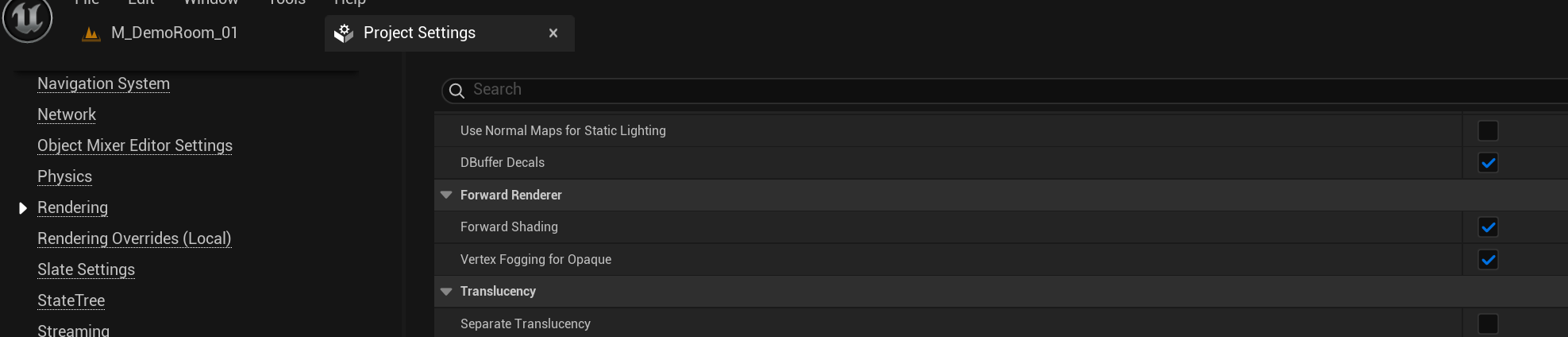
Enabling Forward Shading in Unreal Engine
In Unity URP
To select the Forward+ Rendering Path, use the property Rendering > Rendering Path in the URP Universal Renderer asset.

The Limitations of Forward Rendering
Enabling forward rendering at the start of your project is often the best cause of action to avoid compatibility issues later in development as it could potentially cause problems when done later in development, One nusaunce is that you have to recompile all your shaders which when your on a deadline can take a long time depending on the scope of the project and some features which arnt supported will break if they already exhist in your project such as:
Lumen.
Ray-traced reflections.
High quality SSR.
Expensive planar reflection setups.
Post process volumes.
Exponential Hight Fog
Volumetric Clouds
1. Limited Dynamic Lighting Support
Forward rendering does not scale well with many dynamic lights. In a forward renderer, lighting calculations happen per object during the base pass, meaning every light affecting the object adds additional cost.
This means
Each mesh can only be affected by a limited number of dynamic lights
Lots of overlapping lights become expensive quickly
You should:
Use static lighting where possible
Limit movable lights
Prefer stationary lights
Disable cast Dynamic shadows on Dynamic lights.
This is why most mobile VR scenes rely heavily on baked lighting.
2. Limited Decal Support
Forward rendering does not support full deferred decals.
In defered rendering Decals are applied by modifying the G-buffer and Since forward rendering has no G-buffer, decals must be applied differently.
one solution is to use a plane mesh with a masked material to fake a decal which can be placed and spawned in the scene.
3. Limited Transparency Lighting
Forward rendering has simpler lighting models for translucent materials.
Limitations
Translucent materials receive limited lighting
No complex light accumulation
No full dynamic shadowing
This results in Glass, holograms, particles that may look less realistic than in deferred rendering.
4. Reduced Material Feature Support
Certain material features require the G-buffer and therefore are not available.
Examples include:
Some shading models
Complex layered materials
Some post process material features
5. Reflection Limitations
Forward rendering relies heavily on:
Reflection Capture Actors
Planar Reflections
It cannot use Screen Space Reflections, which are common in deferred rendering resulting in reflections that are:
Less dynamic
Often baked
Less accurate
For mobile VR this is actually really good since reflections can be extremely expensive to calculate on mobile devices.
6. Fewer Post Processing Effects
Many post-processing techniques rely on the additional G-buffer info we get from defered rendering so when using forward Some effects are therefore limited or disabled since we dont have those additional G-buffer passes.
Examples:
Advanced ambient occlusion
Certain custom post materials
Some stylized effects
In a normal VR projects youd probably want to minimize post processing anyway just to maintain high frame rates.
In UE were lucky that the engine generally warns you when you attempt to use unsupported features, this helps. But Forward Rendering will feel restrictive, knowing the limitations up front simplifies development and means you can avoid incompatible tools/systems or plan alternative implementations. Often this requires creativity to achieve similar visual results with supported techniques.
Work Around The Limitations
When working with forward rendering its imprortant to work around the limitations. So id recomment planning a strategy early on.
1. Baked lighting
Since we know dynamic lighting and shadows arnt supported on forward or atleast are expensive we can plan to utalise baked lighting where possible and:
Treat dynamic lights as the exception, not the default.
Establish limits when it comes to lighting (count, radius, shadows on or off, etc.).
2. Materials
Materials are frequently a bigger perf cost than teams expect on VR. Some good rules of thumb:
Avoid expensive layers and unnecessary texture samples which we dont have access to due to the reduction in G-Buffers.
Keep roughness/metallic workflows consistent.
Create a small library of “approved” master materials.
Use fully rough materials where possibel to reduce the number of draw calls.
3. Fake Reflections
Im going to cover this in its own blog post/tutorial in more depth but fake reflections where possible.
Why this works well on mobile:
Cost is basically one texture sample per pixel (predictable).
You keep full artistic control.
You avoid memory spikes from dozens of reflection captures.
4. Profile early, then keep profiling
Forward rendering does not save you from bad performance or content. It just makes performance more manageable in the long run when you make good choices through out development.
A simple routine:
Profile periodically.
Lock budgets (GPU ms, draw calls, memory).
Enforce budget constraints to make sure your hitting frame rates and memory read, write speeds.